A website enquiry arrives at 9:12 on a Monday. Someone notices it at 10:40, copies the name, email and message into the CRM, checks whether the company is already a customer, forwards it to a salesperson, and types a reply saying "thanks, we'll be in touch". It takes ten minutes, and it happens dozens of times a week. Some enquiries wait until the afternoon. A few are copied twice. One or two are missed altogether.
None of this is difficult work, which is exactly the problem. It is repetitive, it depends on someone remembering, and it pulls people away from the work that actually needs them. Workflow automation tools such as n8n let businesses hand these steps to software: the enquiry is checked, stored, routed and acknowledged within seconds, the same way every time.
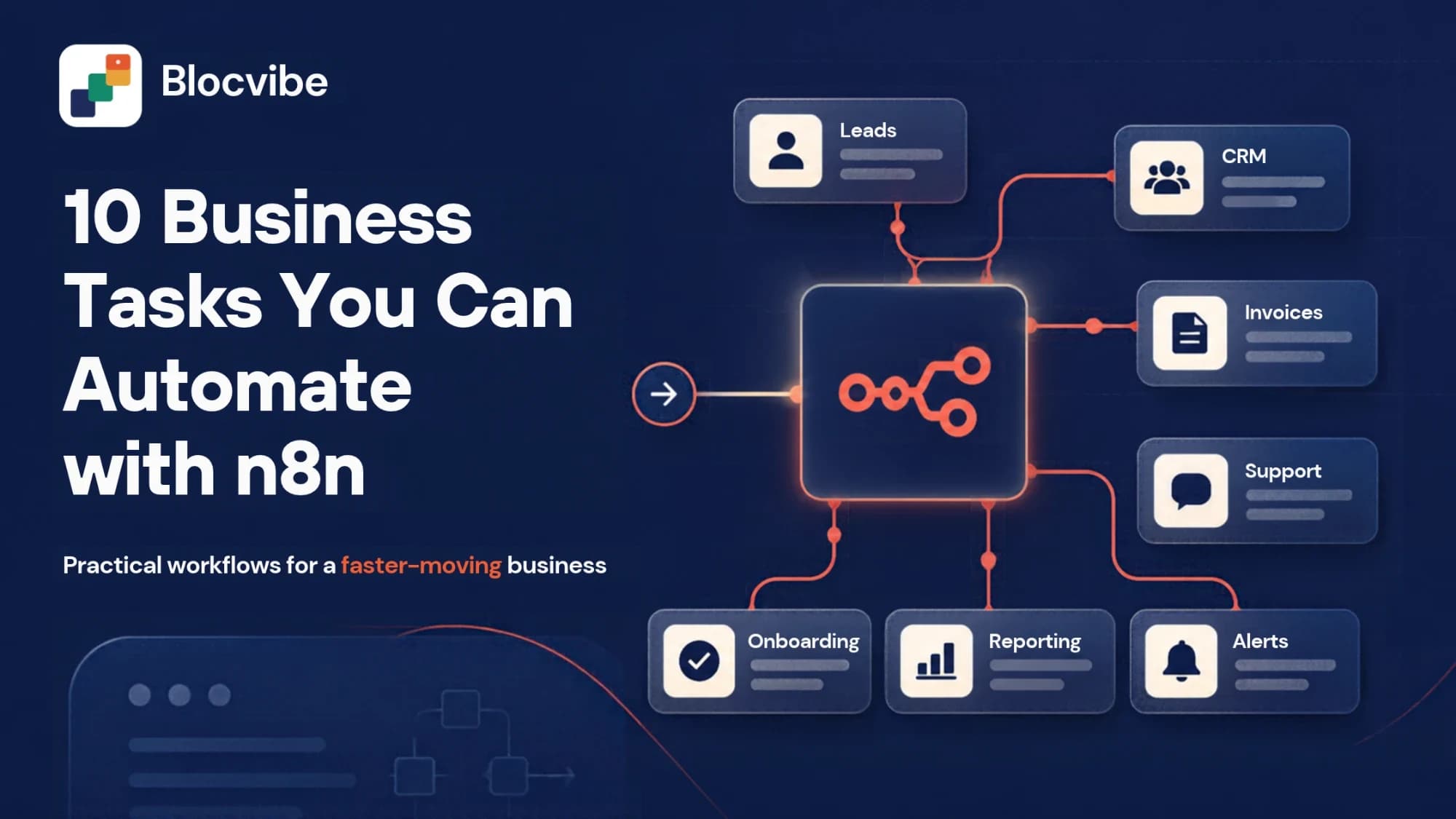
This guide explains, in plain English, what business automation really involves, how n8n connects your applications, what happens behind the scenes when a workflow runs, and ten business tasks you can automate. It also covers the part that is easy to skip and expensive to get wrong: security, reliability and knowing when a workflow tool is not enough and custom software is the better answer.
Why businesses are moving towards automation
Most businesses run on several applications that do not talk to each other: a website, a CRM, an email system, an accounting package, a calendar, spreadsheets and chat. People become the glue between them, copying information from one screen to another. That manual glue causes predictable problems:
- Delays: work waits until someone has time to move it along.
- Errors: retyping introduces typos, missed fields and duplicates.
- Inconsistency: each person handles the same task slightly differently.
- Invisible work: nobody can see what is waiting, who has it, or what was missed.
Automation moves that glue into software. But reliable automation is not simply "connect app A to app B". It needs a plan for what should happen, rules for checking the data, decisions about what to do when something fails, protection for the customer information moving between systems, and someone watching that it keeps working. The rest of this article explains each of those pieces.
What is n8n?
n8n is a workflow automation tool. It lets you build a sequence of steps, called a workflow, that runs automatically when something happens. It can connect to hundreds of applications through ready-made integrations, and to almost any other system through its general-purpose HTTP Request step. n8n can be run on your own servers (self-hosted) or used as a hosted cloud service, and it is published under its own fair-code licence, the Sustainable Use License, which allows use for a business's own internal purposes.
Workflows, nodes, triggers and actions
- A workflow is the whole recipe: everything that should happen, in order, for one job.
- A node is one step in that recipe, such as "receive the form", "check the email address" or "create a CRM contact". In n8n's editor, each node is a box on a canvas, and lines between the boxes show how data flows.
- A trigger is the first node: the event that starts the workflow. It might be a form being submitted, a time of day, or a new record appearing in another application.
- An action is any node that does something: reads data, creates a record, sends a message, updates a status.
Think of a trigger as a doorbell and actions as what you do when it rings: check who it is, sign for the parcel, put it on the right desk and tell the person it is for.
A simple example: a customer submits a website form → n8n receives the event → checks the data → creates a lead in the CRM → notifies the sales team → keeps a record that the run succeeded.
Workflow automation or custom software?
Workflow automation connects existing applications and moves data between them. Custom software is a purpose-built application with its own screens, database and business rules. They solve different problems and often work best together: a custom application holds the core business logic and data, while an automation tool handles the connections to everything around it. We return to this choice later in the article.
How n8n works behind the scenes
When a workflow runs, information passes through a series of layers. You do not need to build these yourself to use n8n, but understanding them explains why some workflows are reliable and others fail quietly.
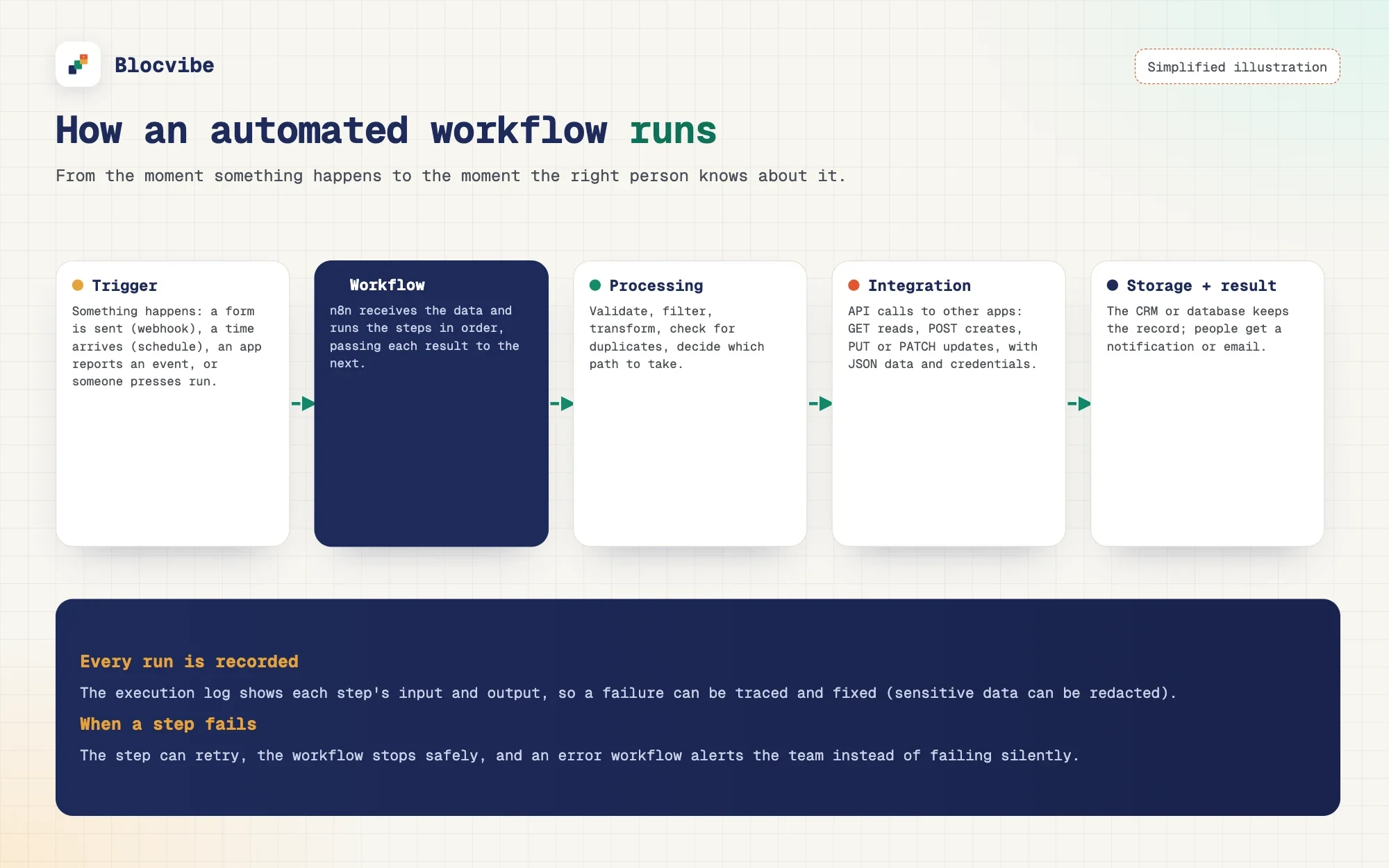
The trigger layer: what starts a workflow
- Webhook triggers: a webhook is a private web address that another system calls when something happens, like a doorbell wired to your website. When a form is submitted, the website sends the details to the workflow's webhook address straight away.
- Schedule triggers: the workflow runs at set times, such as every morning at 8:00 or every Friday afternoon.
- Application events: many integrations can start a workflow when something happens in that application, such as a new email, a new order or a changed record.
- Manual triggers: someone presses a button, which is useful for testing or for jobs that should run only on request.
The integration layer: how applications talk
Applications communicate through APIs (application programming interfaces): published, structured ways for one system to ask another to do something. Each API offers endpoints, which are specific web addresses for specific jobs, such as "contacts" or "invoices". Requests use standard HTTP methods:
| Method | What it does | Example |
|---|---|---|
| GET | Reads information | Look up a contact by email |
| POST | Creates something new | Create a new lead |
| PUT | Replaces a record | Replace a contact's full details |
| PATCH | Changes part of a record | Update only the lead's status |
The data itself usually travels as JSON, a simple text format of labels and values, such as "email": "jane@example.com". Every request also carries credentials, such as an API key or an access token, which prove the workflow is allowed to use that application. We explain how those are protected in the security section.
The processing layer: checking and shaping the data
- Validation: is the email address real-looking, is the phone number present, is the message too long?
- Conditional logic: "if the enquiry mentions pricing, send it to sales; otherwise, to support".
- Filtering: ignore test submissions, internal addresses or obvious spam.
- Transformation: reshape data from one system's format into another's, such as splitting a full name or converting a date.
- Duplicate prevention: check whether the record already exists before creating another; n8n even has a step designed to remove duplicates.
- Error handling: decide what happens when something goes wrong, rather than leaving it to chance.
The storage layer: where information lives
A workflow moves data; it should not be the place data lives. The permanent record belongs in a proper system: the CRM, the accounting package or a well-designed database. Those systems have their own structure, permissions, backups and history. A workflow reads from and writes to them, but the record of who your customers are and what they bought should never depend on an automation tool's internal storage. Treating a workflow tool as a database is a common shortcut that causes trouble as a business grows.
The execution layer: how a run happens
Each time a workflow runs, n8n creates an execution: one run of the workflow from trigger to finish. Data flows from one node to the next, each node receiving the previous node's output. n8n can keep a log of executions, showing what each step received and produced, which makes troubleshooting much easier.
When a step fails, perhaps because another service is briefly unavailable, it can be set to retry automatically. If it still fails, the workflow can stop safely and hand over to an error workflow, which starts with an Error Trigger and can alert the team by email or chat. The aim is that nothing fails silently.
1. Website lead capture and CRM management
The problem: enquiries arrive through forms, email and chat, and reach the CRM late, twice or not at all.
The manual process: someone reads each enquiry, retypes it into the CRM, searches for an existing record, decides who should handle it and forwards it.
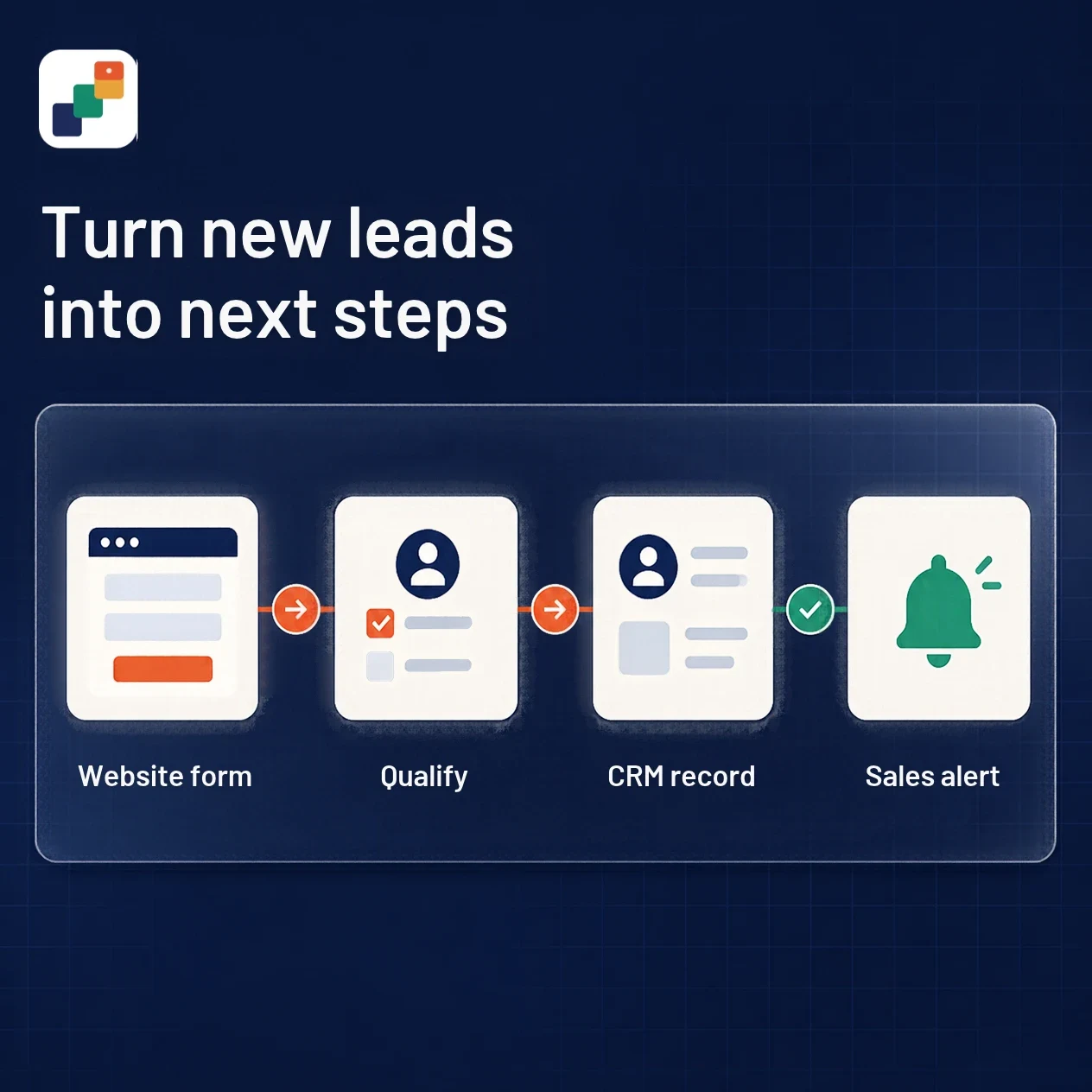
The automated workflow:
- The website form sends the enquiry to a secured webhook.
- The workflow validates the fields and filters out spam and test entries.
- It searches the CRM for the email address or company.
- It updates the existing contact, or creates a new lead.
- It assigns the lead by agreed rules, such as region or service.
- It notifies the assigned salesperson.
Connected applications: your website or form tool, a CRM such as HubSpot, Pipedrive, Salesforce or a custom CRM, and email or team chat.
Behind the scenes: a webhook trigger, a validation step, a GET request to search the CRM, a conditional branch, then a POST to create or a PATCH to update the lead.
Security considerations: the webhook should accept only authenticated requests; inputs must be validated; the CRM credential should be allowed to manage leads and nothing more.
Business benefits: faster responses, no retyping, one record per customer and clear ownership of every enquiry.
Example (illustrative): a consultancy receives an enquiry at 9:12; by 9:12 and a few seconds, the lead is in the CRM, assigned to the consultant for that region, who has a notification on their phone.
2. Automated email responses and follow-ups
The problem: customers wait hours for an acknowledgement, and follow-ups depend on memory.
The manual process: staff send acknowledgements by hand, set personal reminders and update the CRM afterwards, when they remember.
The automated workflow: when a lead is created, the workflow sends a personalised acknowledgement, creates a follow-up task with a due date, and logs the email against the CRM record. If no reply or meeting is recorded within an agreed time, it reminds the owner.
Connected applications: an email service (such as Gmail, Microsoft 365 or a transactional email provider) and the CRM.
Behind the scenes: an application or webhook trigger, a template filled with the customer's details, an API call to send the email, and a scheduled check for leads with no recent activity.
Security considerations: send from a verified domain, include only the personal data needed, and respect marketing consent: an acknowledgement is not permission to add someone to a newsletter.
Business benefits: every enquiry is acknowledged promptly and none is forgotten.
Example (illustrative): an enquiry about a website redesign gets an instant reply explaining what happens next, and the account manager gets a reminder two working days later if the lead has not moved.
3. Invoice generation and payment notifications
The problem: invoices go out late, payment status is unclear, and chasing overdue invoices is awkward and inconsistent.
The manual process: someone checks which jobs are complete and approved, creates invoices in the accounting system, emails them and keeps a list of who has paid.
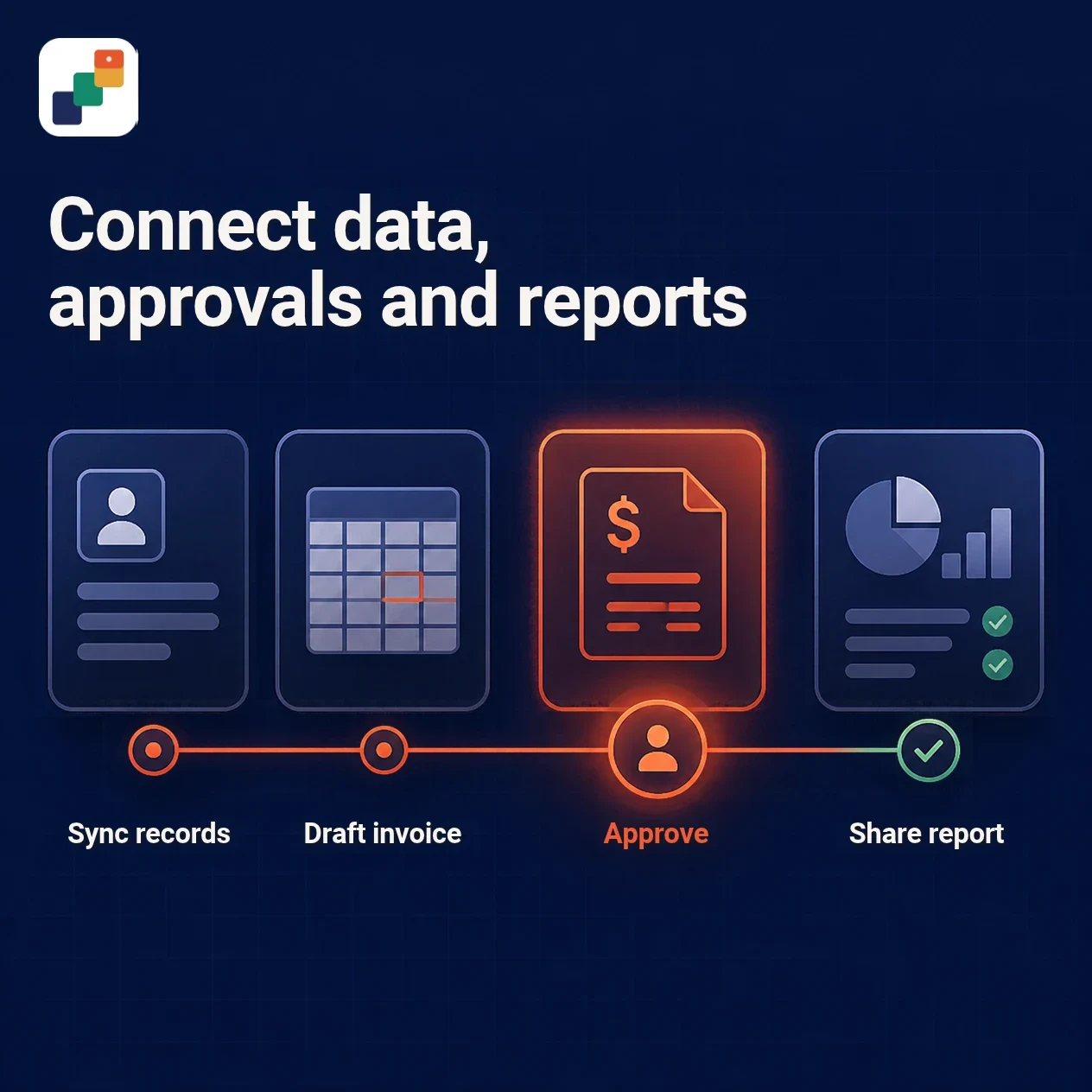
The automated workflow: when a job or order is marked complete, the workflow drafts an invoice in the accounting system and asks a named person to approve it. Once approved, the accounting system sends it. When the payment provider or accounting system reports a payment, the workflow updates the record and tells the account owner; if an invoice becomes overdue, it sends a polite reminder on an agreed schedule.
Connected applications: an accounting package such as Xero or QuickBooks, a payment provider such as Stripe, the CRM or project tool, and email.
Behind the scenes: application events or webhooks from the payment provider, an approval step, and API calls that create and update invoices.
Security considerations: financial records must stay in the accounting system as the source of truth, and payments must be confirmed by the payment provider, never assumed from a form or an email. Webhooks from payment providers should be verified using the provider's signature checks, credentials should have the narrowest permissions available, and a person should approve invoices above an agreed value.
Business benefits: invoices go out on time, everyone can see payment status, and reminders are consistent and polite.
Example (illustrative): a project is marked complete on Thursday; the finance lead approves the draft invoice from a notification, it is sent within minutes, and a reminder goes out automatically if it is unpaid seven days after the due date.
4. Customer onboarding automation
The problem: new customers get a different experience depending on who is free, and set-up steps are missed.
The manual process: someone sends a welcome email, creates accounts, shares forms, books a kick-off call and assigns internal tasks, often from a checklist in their head.
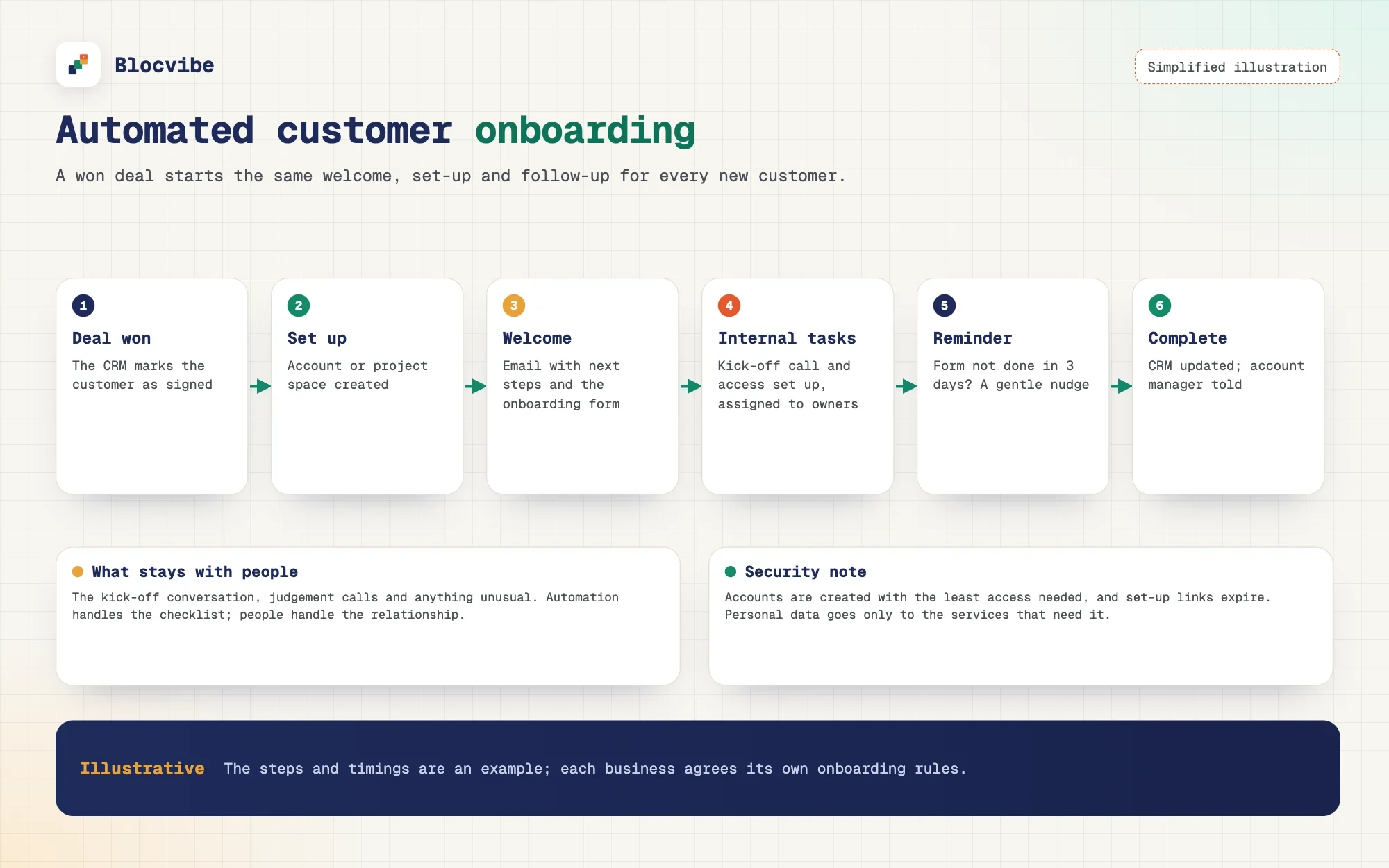
The automated workflow: when a deal is marked won, the workflow creates the customer's account or project space, sends a welcome email with the onboarding form, creates internal tasks such as the kick-off call and access set-up, reminds the customer if the form is not completed, and updates the CRM when onboarding is finished.
Connected applications: CRM, email, a form tool, a project or task tool, and your own product if it has an API for creating accounts.
Behind the scenes: an application event trigger, a sequence of API calls, a wait step for the reminder, and a final status update.
Security considerations: create accounts with the least access needed, make set-up links expire, and pass personal data only to the services that need it.
Business benefits: every customer gets the same well-organised start, and the team can see exactly where each onboarding stands.
Example (illustrative): a new client signs on Monday morning; by lunchtime they have a welcome email and form, and the account manager and technical lead each have their tasks.
5. Appointment booking and reminders
The problem: back-and-forth emails to find a time, double bookings and missed appointments.
The manual process: staff check calendars, propose times, confirm by email, send reminders and update records when plans change.
The automated workflow: when a booking is made through a scheduling tool or your website, the workflow checks it against availability, confirms it to the customer, adds it to the right calendar and CRM record, sends reminders before the appointment, and handles cancellations by freeing the slot and notifying the team.
Connected applications: Google Calendar or Microsoft Outlook, a booking tool such as Calendly, the CRM, and email or SMS.
Behind the scenes: a webhook from the booking tool, calendar API calls to check and create events, and scheduled reminders.
Security considerations: calendar access should be limited to the calendars involved, and reminder messages should not include sensitive details such as health or financial information.
Business benefits: fewer emails, fewer no-shows and a calendar everyone can trust.
Example (illustrative): a clinic's patients book online; they receive a confirmation, a reminder the day before, and the front desk sees cancellations immediately.
6. Social media content and publishing workflows
The problem: content sits in documents waiting for approval, posts go out late, and nobody is sure what was published where.
The manual process: drafts are passed around for comments, approved by message, then copied into each platform at the right time.
The automated workflow: drafts are tracked in a content calendar; when a manager marks one approved, the workflow schedules or publishes it to the connected platforms where their APIs allow, records the published link and notifies the team.
Connected applications: a content calendar in a spreadsheet, Notion or Airtable, team chat, and the social platforms' official APIs or a scheduling tool.
Behind the scenes: a status-change trigger, an approval check, and API calls to the platforms.
Security considerations: each platform sets its own rules for automated publishing, permissions and rate limits, and these change over time, so the workflow must use official APIs, respect each platform's terms and use accounts with only the permissions needed. A person should always approve what is published.
Business benefits: a clear approval trail, consistent timing and a record of everything published.
Example (illustrative): the marketing lead approves next week's posts on Friday; they are scheduled automatically and the links appear in the content calendar as each one goes live.
7. Customer support ticket management
The problem: support requests arrive by email, form and chat, and wait while someone works out what they are about and who should answer.
The manual process: a person reads every request, decides its category and urgency, and forwards it to the right colleague.
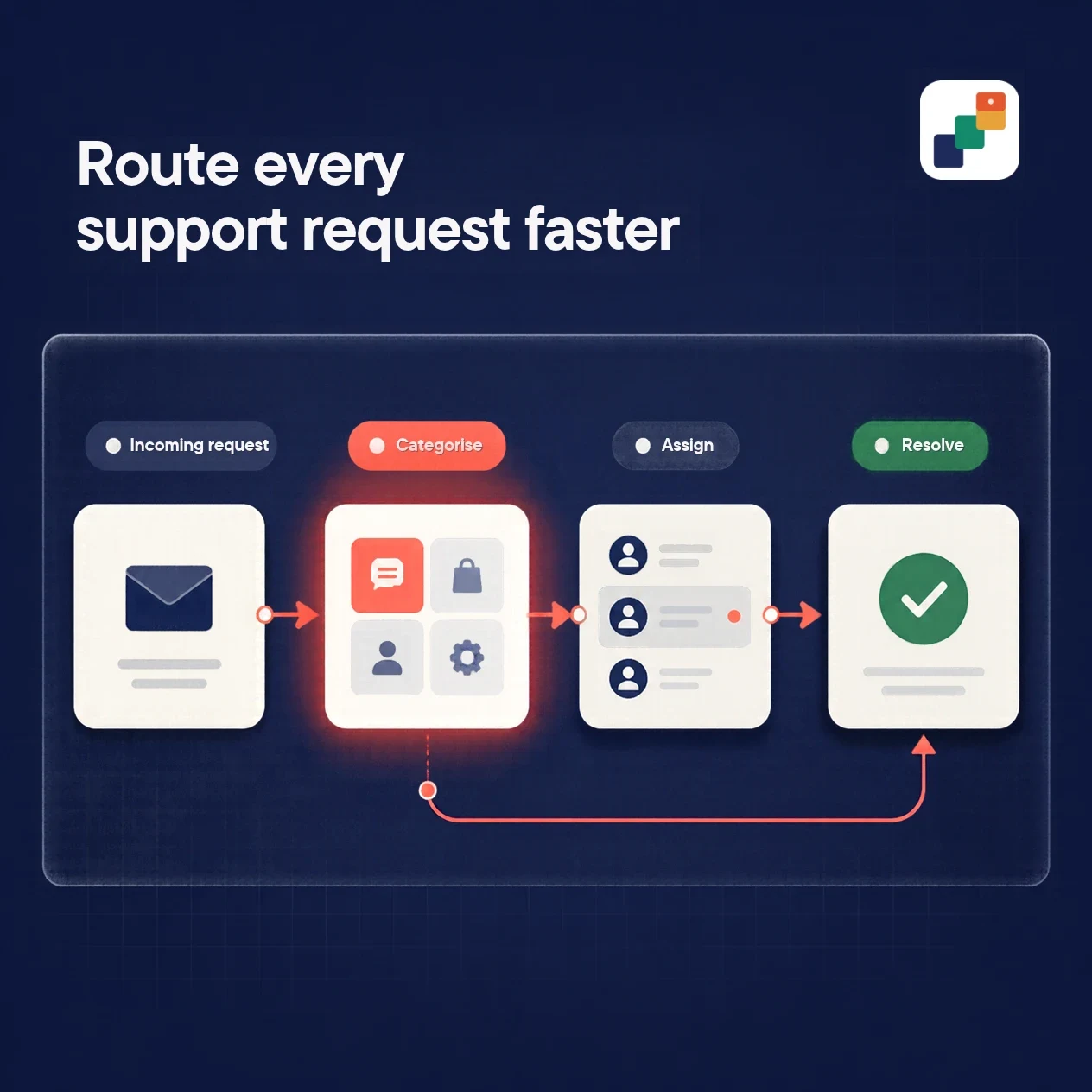
The automated workflow: each incoming request is turned into a ticket, categorised using keywords or rules, prioritised (for example, anything from a key account or mentioning an outage), assigned to the right team, and escalated if it is not picked up within an agreed time. Customers receive an acknowledgement with their ticket reference.
Connected applications: a help desk such as Zendesk or Freshdesk, a shared inbox, chat, and the CRM for customer context.
Behind the scenes: email or webhook triggers, conditional routing, help-desk API calls and a scheduled escalation check. Categorisation can also use an AI model, in which case its suggestions should be reviewed and its access to customer data carefully limited.
Security considerations: support messages often contain personal information; limit who can see which tickets, avoid copying full messages into chat channels, and keep sensitive data out of execution logs.
Business benefits: requests reach the right person sooner, urgent issues are spotted early, and nothing sits unassigned.
Example (illustrative): a message mentioning "can't log in" from a key account is marked high priority and assigned to the technical support lead immediately.
8. Internal team notifications and task management
The problem: important changes, such as a new lead, a missed deadline or a status update, are buried in different tools.
The manual process: people check several applications and pass on updates by message.
The automated workflow: agreed events create tasks or notifications in the right place: a new high-value lead posts to the sales channel, an approaching deadline reminds the owner, and a project moving to "review" creates a task for the reviewer.
Connected applications: Slack or Microsoft Teams, a task tool such as Asana, Trello or Jira, and the CRM or project system.
Behind the scenes: application event triggers, filters so only important events notify people, and API calls to post messages and create tasks.
Security considerations: do not post customer details into broad channels; link to the record instead, where the application's own permissions apply.
Business benefits: fewer status questions, faster hand-offs and fewer missed deadlines. Filter carefully: too many notifications are as unhelpful as too few.
Example (illustrative): when a proposal is marked "sent", the workflow creates a follow-up task for the account manager three days later.
9. Reports and business performance dashboards
The problem: weekly reports take hours to assemble from several systems and are out of date by the time they are read.
The manual process: someone exports data from each system, pastes it into a spreadsheet, fixes formats and emails the result.
The automated workflow: on a schedule, the workflow collects figures from each system through their APIs, checks them, combines them into one summary, stores the result in a spreadsheet, database or dashboard tool, and sends it to the right people.
Connected applications: CRM, accounting, help desk, analytics, a spreadsheet or database, and email or chat.
Behind the scenes: a schedule trigger, several GET requests, transformation and validation steps, and a write to the reporting destination.
Security considerations: use read-only credentials wherever possible, and send reports only to people entitled to see the figures.
Business benefits: the same report, built the same way, every week, without manual effort. For live, interactive reporting, a dedicated dashboard application may be a better fit than a scheduled workflow.
Example (illustrative): every Monday at 8:00, the leadership team receives one email with last week's new leads, deals won, invoices issued and open support tickets.
10. E-commerce order processing and customer updates
The problem: orders need to reach the warehouse, stock needs to stay accurate, and customers want to know where their order is.
The manual process: staff check each new order, confirm payment and stock, notify the warehouse and send status emails.
The automated workflow: when the shop reports a new paid order, the workflow checks stock in the inventory system, creates a fulfilment task, alerts the team about large or unusual orders, and sends the customer updates as the order is packed and dispatched.
Connected applications: an online shop such as Shopify or WooCommerce, an inventory or ERP system, a courier service and email.
Behind the scenes: a webhook from the shop, API calls to the inventory and courier systems, and status-based customer notifications.
Security considerations: stock levels and payment status must be confirmed by the systems that own them (the inventory system and the payment provider), not inferred by the workflow. Shop webhooks should be verified, and the workflow should handle the same order arriving twice without creating two shipments.
Business benefits: faster fulfilment, accurate stock and fewer "where is my order?" messages.
Example (illustrative): a paid order arrives at 22:15; by the morning it is on the warehouse's pick list, and the customer received a dispatch email with tracking when it left.
Security: automation moves your customers' data
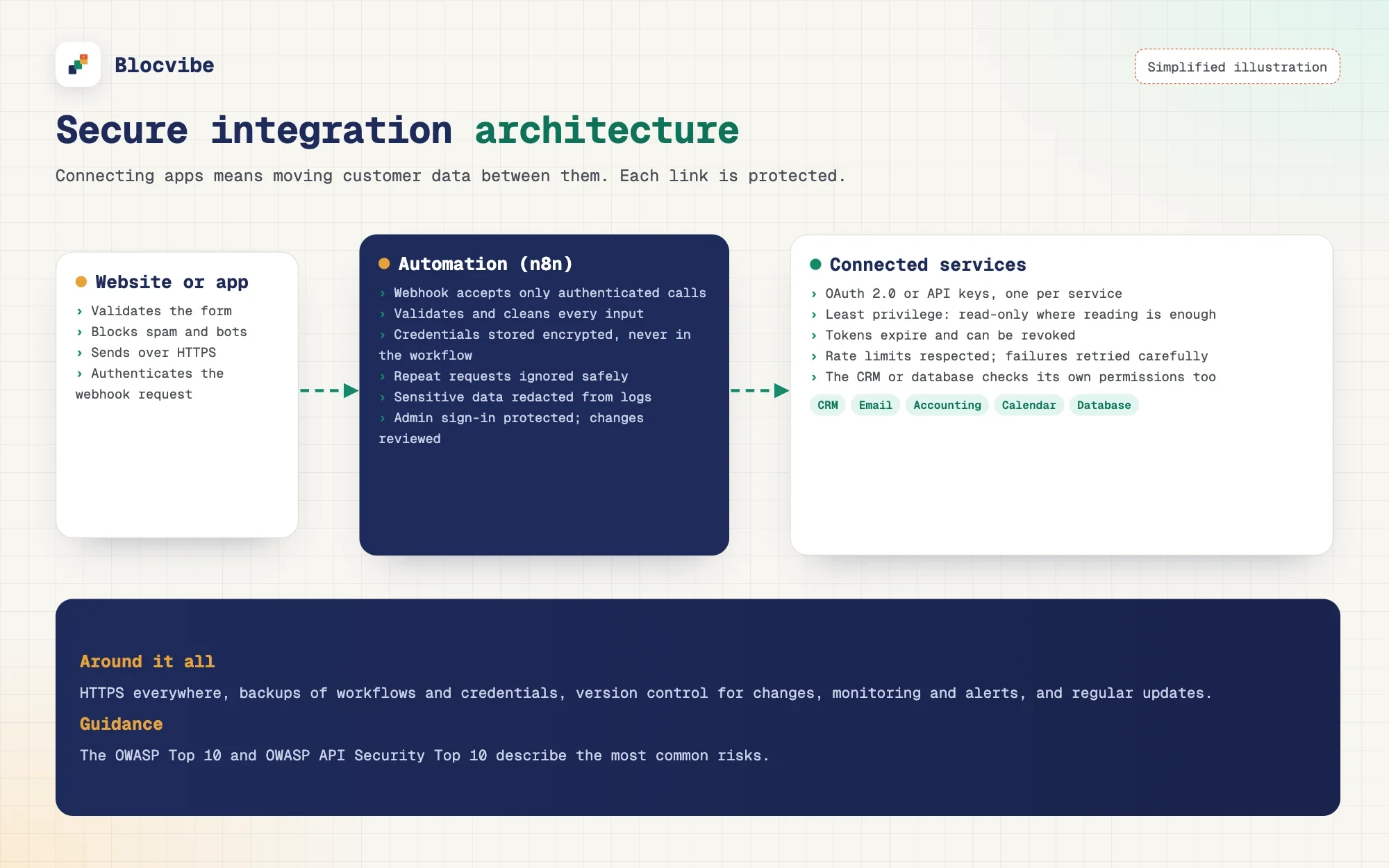
Every workflow that connects applications is also moving business and customer information between them. That makes security a design question, not an afterthought. Using n8n, or any automation tool, does not make a workflow secure by itself; security depends on how the workflow, the connected systems and the hosting are set up. The OWASP Top 10 and OWASP API Security Top 10 describe the most common risks.
Authentication and authorisation between systems
- API keys are like a password for a system rather than a person. Anyone holding one can use it, so they must be kept secret and rotated if exposed.
- OAuth 2.0 lets you grant a workflow limited access to an account without sharing its password, and to withdraw that access later.
- Access tokens are short-lived passes issued through OAuth or similar schemes; when they expire, they are refreshed rather than reused forever.
- Least privilege means each credential can do only what the workflow needs: if a workflow only reads invoices, its credential should not be able to delete them.
- Secure service-to-service communication means every connection uses HTTPS and is authenticated in both directions where possible.
Protecting data
- HTTPS and TLS encrypt data as it travels between systems.
- Encryption at rest protects stored data where the services support it.
- Secure credential storage: n8n encrypts saved credentials with an encryption key; on a self-hosted instance that key must itself be kept secret and backed up. Credentials should never be pasted into workflow steps or code.
- Personal information: pass only the fields each step needs, and follow the data protection rules that apply to your business.
Securing workflows themselves
- Webhook authentication: a webhook address is reachable from the internet. n8n's Webhook node supports authentication such as basic auth, header auth and JWT, so only callers with the right secret are accepted. Payment and e-commerce providers also sign their webhooks so the receiver can verify them.
- Input validation and sanitisation: treat everything arriving from outside as untrusted, and check it before using it.
- Rate limiting: limit how often a public webhook can be called, so it cannot be flooded.
- Idempotency: design workflows so that receiving the same request twice does not create two leads, two invoices or two shipments, for example by checking a unique ID first.
- Safe error handling: errors should alert the team without exposing internal details to customers.
- Protecting the automation platform: limit who can edit workflows, protect admin sign-in with strong passwords and multi-factor authentication, and keep the platform updated.
Common risks, in plain English
| Risk | What it looks like in automation | How it is reduced |
|---|---|---|
| SQL injection | Text from a form is inserted directly into a database query | Parameterised queries; never build queries from raw input |
| Cross-site scripting (XSS) | Form text containing a script is later shown in a web page or admin panel | Escape output where it is displayed; validate input |
| Broken access control | A workflow exposes records to people who should not see them | Rely on each system's own permissions; least privilege |
| Exposed credentials | API keys pasted into steps, shared files or code | Encrypted credential storage; rotation |
| Insecure webhooks | Anyone who finds the address can trigger the workflow | Webhook authentication or signature checks |
| Unvalidated input | Unexpected values break steps or corrupt records | Validation at the start of every workflow |
| Excessive permissions | A reporting workflow can also delete records | Separate, narrowly scoped credentials |
| Sensitive data in logs | Execution logs keep full customer details | Log only what is needed; n8n can redact execution data |
Reliability and maintenance
Automation needs looking after, just like any other software:
- Monitoring and failure alerts: error workflows and alerts so failures are noticed the same day.
- Execution logs: kept long enough to investigate problems, with sensitive data limited or redacted.
- Retry strategies: retries for temporary failures, without creating duplicates.
- Backup and recovery: regular backups of workflows, credentials and the platform's own database, with the encryption key stored safely.
- Version control and change management: changes are reviewed and recorded, so a mistake can be undone.
- Testing before production: new or changed workflows are tested with sample data before they touch live records.
- Third-party changes: the applications you connect will update their APIs; someone must notice and adjust the workflows.
n8n or custom software?
Workflow automation and custom software are complementary rather than competing. The right choice depends on how complex the logic is, how much control you need over data and security, and how central the process is to your business.
| Aspect | Ready-made automation (simple connectors) | n8n workflows | Custom web application | Automation plus custom software |
|---|---|---|---|---|
| Complexity | Simple, linear tasks | Multi-step workflows with branches | Complex rules, screens and data | Complex core with many connections |
| Flexibility | Limited to available connectors | High; custom API calls and code steps | Complete | High |
| Custom business logic | Minimal | Moderate | Full | Full in the application |
| Scalability | Depends on the plan | Good when hosted and configured well | Designed for your expected load | Each part scaled appropriately |
| Data ownership | Data passes through the vendor | Can be self-hosted under your control | Your database, your rules | Core data in your application |
| Security control | Vendor-managed | Shared, or yours if self-hosted | Fully yours to design | Fully yours to design |
| Maintenance | Low, but limited | Workflows and platform need upkeep | Ongoing development and updates | Both need upkeep |
| Integrations | Common apps only | Hundreds of integrations plus any API | Built as needed | Best of both |
As a rule of thumb, n8n is an excellent integration and automation layer for connecting systems and removing repetitive steps. When the process itself is the product, involves complex rules and permissions, or holds data that must be modelled carefully, a properly engineered backend, database and application is the better foundation, often with n8n connecting it to everything else. Our guide to custom CRM software development explores when a purpose-built system makes sense.
A complete example: a website enquiry, end to end
Here is how the pieces fit together in one real-world workflow: a customer sends an enquiry through a business website.
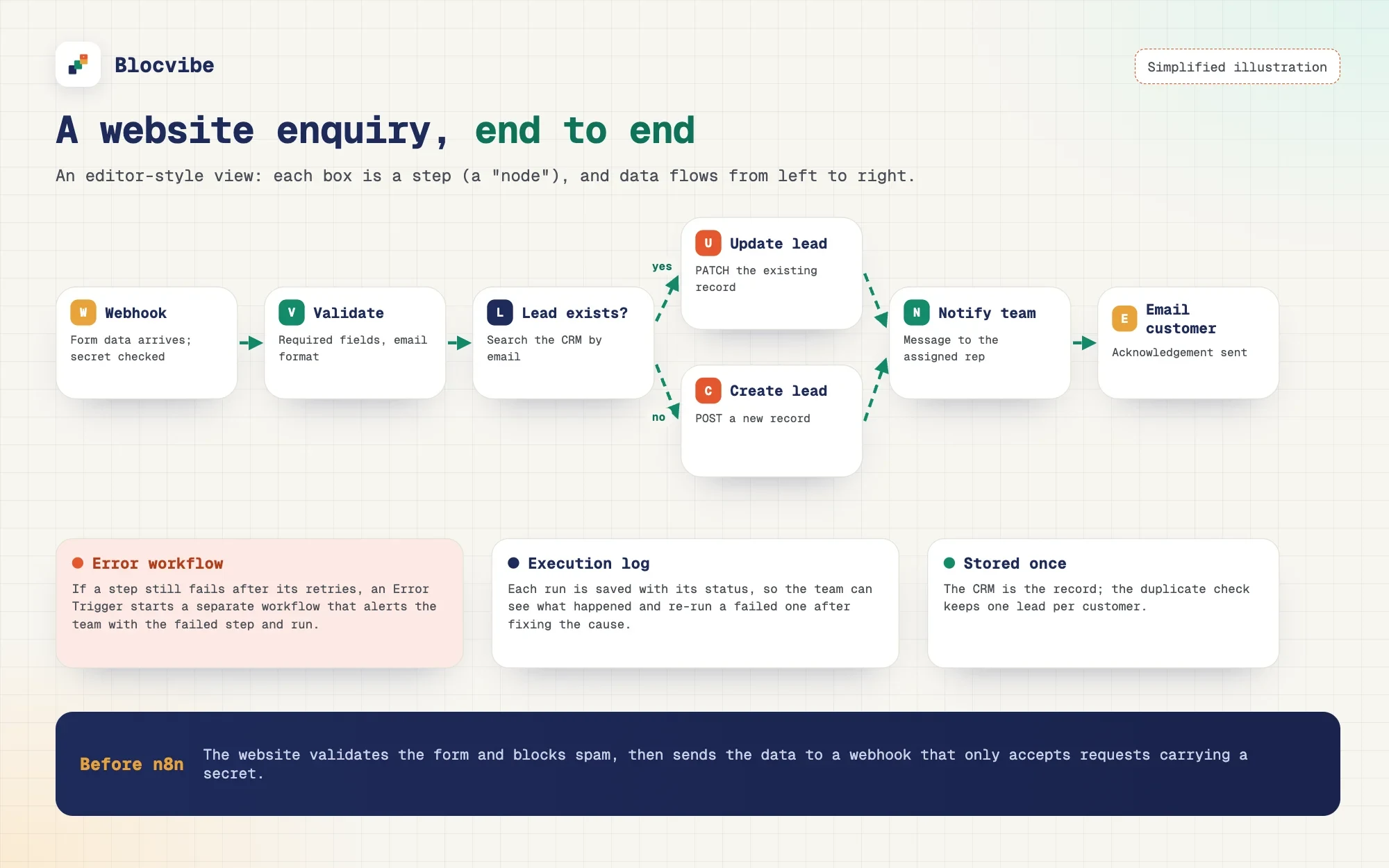
- The customer submits the form. They type their name, email and message and press Send.
- The website validates it. It checks required fields and formats, and blocks spam and bots, before anything leaves the site.
- A secure webhook sends it to n8n. The website calls the workflow's webhook address over HTTPS, including a secret that proves the request came from the website.
- n8n validates and processes it. The workflow checks the data again, cleans it, and rejects anything unexpected.
- It checks for an existing lead. A GET request searches the CRM by email address.
- The CRM API creates or updates the lead. A PATCH updates the existing record, or a POST creates a new one, linked to the right company.
- The right person is notified. The assigned salesperson receives a message with a link to the record.
- The customer is acknowledged. An email confirms the enquiry was received and explains what happens next.
- The run is recorded. The execution log keeps the outcome, with sensitive fields redacted.
- Failures are handled. If the CRM is briefly unavailable, the step retries; if it still fails, the error workflow alerts the team with the details needed to fix it, and the enquiry is not lost.
Each component has a clear job: the website collects and checks, the webhook receives, the workflow decides and coordinates, the CRM stores, and notifications keep people informed. That separation is what makes the system reliable and easy to change.
Getting started, and how Blocvibe can help
Start small. Pick one repetitive task that happens often and follows clear rules, write down the steps people take today, and automate that first. Measure the result, then move on to the next. Good candidates are the tasks your team complains about most.
Blocvibe designs and builds the software and integrations behind reliable automation. We can help you decide what is worth automating, connect your applications securely through our system integration and product engineering work, build custom software or a CRM or ERP system where a workflow tool is not enough, and add AI features such as categorising requests, with human review. If you are planning a larger change, our guide to validating your idea before writing code is a good place to start.
If repetitive work is slowing your team down, tell us about the processes you want to automate. We will give you an honest view of what can be automated, what needs custom software, and how to keep it secure.
 By Blocvibe